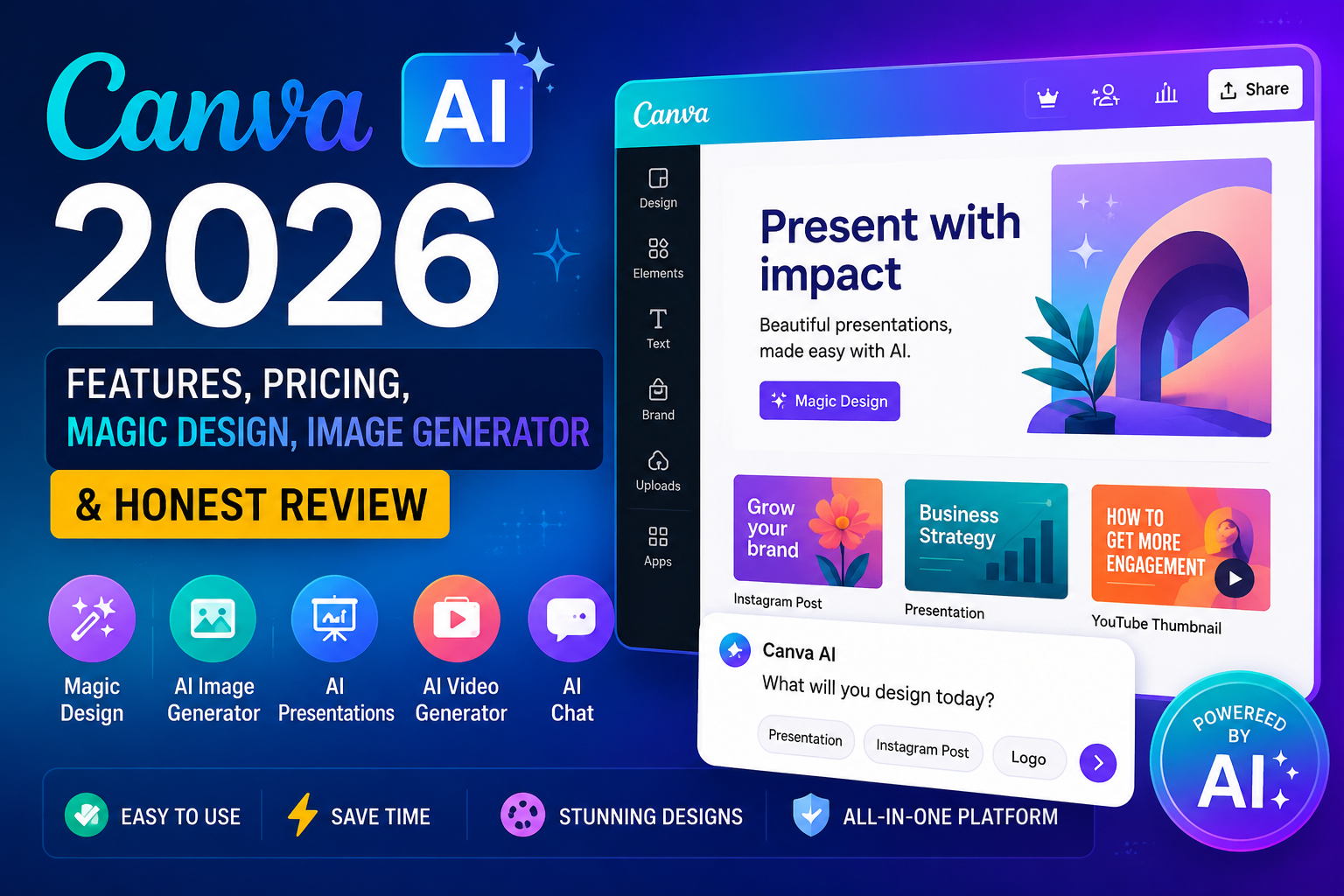
Canva AI is an AI-powered design assistant integrated into Canva that lets you generate images, presentations, videos, and marketing assets using natural language prompts – all within a single, editable workspace.
I spent 30 days testing Canva AI 2.0 for client work, social media content, and internal presentations. I went in skeptical – I’ve tested enough AI tools to know that “game-changing” usually means “marginally useful.” But Canva AI 2.0, launched at Canva Create 2026 in April, is genuinely different.
Here’s the thing: Canva isn’t just a design tool with AI slapped on anymore. With Canva AI 2.0, the company has quietly transformed itself from “a design platform with AI tools to an AI platform with design tools”. And that shift matters – not just for designers, but for anyone who needs to create visuals, presentations, or marketing content.
But before you dive in, there are some things you need to know. The credit system is confusing. The image quality isn’t always top-tier. And if you’re a professional designer, you’ll hit limits fast.
Let me break down what actually works, what doesn’t, and whether Canva AI is worth your money in 2026.
What Is Canva AI?
Featured Snippet Answer: Canva AI is an AI-powered design assistant inside Canva that helps users generate images, presentations, videos, documents, and marketing assets using natural language prompts. It’s available across Canva Pro, Teams, Business, and Nonprofit plans, with limited access on the Free tier.
Canva AI is a conversational, agentic design platform that lets you create editable designs by describing what you want in plain English. Think of it as the difference between hiring a junior designer who needs constant hand-holding and a senior designer who just gets what you want. Canva AI 2.0 maintains context across iterations, remembers your preferences through a Memory Library, and can coordinate multiple tools to complete complex tasks.
The company’s COO, Cliff Obrecht, put it bluntly at Canva Create 2026: Canva is shifting from “a design platform with AI tools to an AI platform with design tools”. That’s not marketing fluff – it’s a fundamental architectural change.
Here’s what that means in practice:
- Conversational Design: Describe a presentation, and Canva builds it – fully editable, with proper layout, typography, and your brand colors.
- Agentic Orchestration: Ask for a “multi-channel campaign plan to launch our summer products,” and Canva generates everything across formats.
- Object-Based Intelligence: Change one element without breaking the entire design – something that sounds simple but is surprisingly rare in AI tools.
- Living Memory: The system learns your style, brand guidelines, and preferences over time.
This isn’t a gimmick. During client work, I tested it by asking for a “10-slide pitch deck in our brand colors with these four talking points.” It took about 22 seconds. That’s genuinely useful.
How Canva AI Works
Featured Snippet Answer: Canva AI works through a unified architecture layer called Canva AI 2.0, which orchestrates multiple AI models behind a single conversational interface. It uses different models for different tasks: Dream Lab runs on Leonardo. AI’s Phoenix model for images, Google’s Veo 3 for video, and Magic Write for copy generation.
The system is built on Canva’s Visual Suite and goes beyond single prompts and static generations. Instead, it offers a creative partner that works alongside you in the editor from first idea to final design.
Behind the scenes, Canva AI uses different models for different tasks:
- Image Generation: Dream Lab runs on Leonardo.AI’s Phoenix model – Canva acquired Leonardo in 2024, so this is now in-house.
- Video Generation: Google’s Veo 3 model.
- Copy Generation: Magic Write handles text generation.
- Design Interface: Canva’s proprietary Design Foundation Model, built specifically to understand design structure, hierarchy, and complexity.
When you type a prompt, Canva AI 2.0’s agentic system understands layered design and can complete complex tasks using a conversational interface. You can iterate naturally – “Make the title bigger,” “Change the background to gradient,” “Add a chart here” – and the system maintains context throughout.
Canva AI Features: Deep Analysis
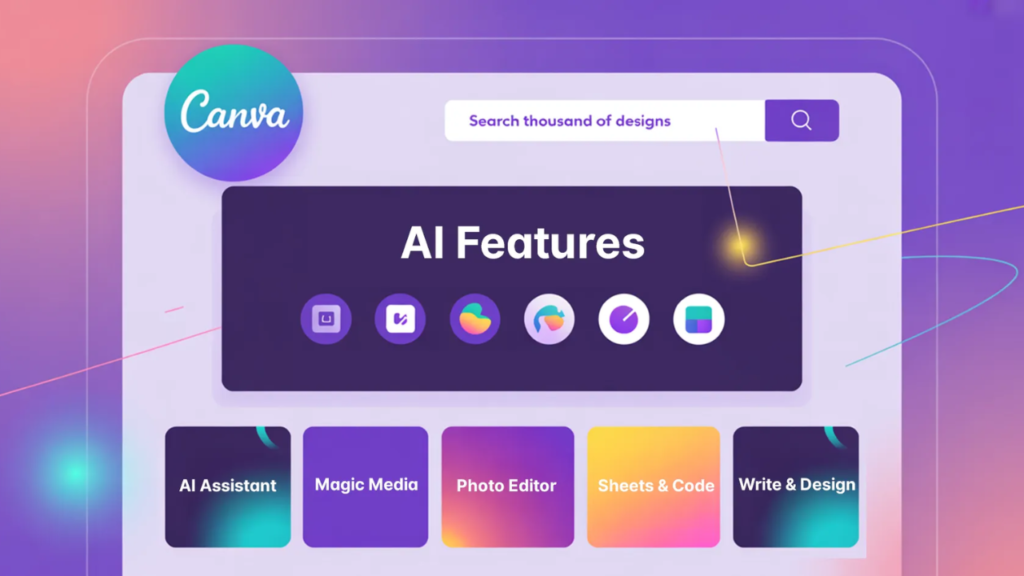
Canva’s AI suite – collectively called Magic Studio – spans multiple integrated surfaces: the core design editor, Sheets, Code, Video 2.0, and Affinity (the professional design suite Canva acquired in 2024 and made fully free in 2026).
Here are the features you’ll actually use:
Canva AI Magic Design
Featured Snippet Answer: Magic Design is Canva’s AI tool that generates complete, editable layouts from a text prompt or image upload. It combines OpenAI’s generative AI with Canva’s design library of over 100 million assets to produce customized templates for presentations, flyers, and social media.
I uploaded a product photo and a company name, clicked “Magic Design,” and got five completely different layout options within seconds. Each one looked professionally designed. I picked one, made minor tweaks, and had a polished Instagram post in under five minutes. Doing this manually in Photoshop would have taken 30 minutes.
Magic Design combines OpenAI’s generative AI with Canva’s design library of over 100 million assets to produce customized templates for presentations, flyers, and social media. You’ll find it in the toolbar on the left side of the editor, or by going to Apps and selecting Magic Studio.
What matters: Magic Design works best with common content types – social posts, presentations, flyers, and videos. It’s not for complex, bespoke designs. But for 80% of what most people need, it’s fast and effective.
Canva AI Presentation Maker
Featured Snippet Answer: Canva AI Presentation Maker uses Magic Design to build a first-draft presentation deck in seconds from a single text prompt. You describe what you need, and it generates a fully editable presentation with proper layout, typography, and brand colors.
I tested it by pasting in a few bullet points for a pitch deck. Magic Design suggested visually appealing layouts that kept the audience engaged without me needing to be a PowerPoint wizard.
The workflow is simple: Describe what you need – “10-slide pitch deck in our brand colors with these four talking points” – and Canva generates a complete, editable presentation. You can then iterate conversationally.
Real workflow example: During a client project for a SaaS startup, I used Canva AI to generate a 12-slide investor pitch deck. The AI created a consistent visual theme, suggested data visualizations for their metrics, and even generated placeholder copy. The client approved the first draft with only minor changes – a process that would have taken a full day manually.
What matters: The presentations are fully editable – not flat images. You can jump in to collaborate, comment, and iterate as the work evolves.
Canva AI Image Generator (Dream Lab)
Featured Snippet Answer: Dream Lab is Canva’s text-to-image generator powered by Leonardo.AI’s Phoenix model. It produces stylized images for social media, marketing, and presentations, offering around 15 styles including 3D render, Cinematic, Illustration, and Bokeh.
I tested it by typing “sustainable fashion Instagram carousel.” It produced four different artistic interpretations. They weren’t flawless – some had odd proportions, and hands were occasionally a problem – but they were publication-ready with minimal editing.
Dream Lab offers around 15 styles plus a Style Transfer feature, and outputs editable Canva designs rather than flat images. Predefined styles include Cinematic, Illustration, and Bokeh.
Real workflow example: For a LinkedIn campaign, I generated 20+ custom illustrations using Dream Lab. The process took about 45 minutes – generating variations, selecting the best ones, and tweaking them in the editor. The same task with a freelance illustrator would have cost $500+ and taken days.
What matters: Dream Lab is strong for stylized graphics but behind Midjourney v7 and Flux on photorealism, faces, and in-image text. If you need photorealistic images, look elsewhere. If you need social media visuals, it’s more than adequate.
Canva AI Video Generator
Featured Snippet Answer: Canva AI Video Generator, powered by Google’s Veo 3 model, generates 8-second video clips with synchronized sound from text prompts. It’s available to Canva Pro, Teams, and Business subscribers.
The video generation runs on Google’s Veo 3 model. It generates videos with sound from simple text prompts, producing clips up to 8 seconds in length.
Where it shines: Social media clips, short ads, quick marketing videos, and presentations. It’s simple to learn and packed with templates.
Where it falls short: AI-generated storytelling. Canva expects you to write and design every scene – it doesn’t generate the actual narrative. For training videos, corporate communications, or cinematic content, dedicated tools like Synthesia or Runway are better.
Real workflow example: For a YouTube channel, I used Canva AI Video to generate short intro clips for each video. The 8-second clips with synchronized audio added a professional touch that previously required outsourcing to a video editor.
Canva AI Photo Editor
Canva AI Photo Editor includes Magic Edit, Magic Eraser, Magic Grab, and Background Remover – all powered by AI.
- Magic Edit: Replace or add elements in photos with simple text prompts
- Magic Eraser: Remove unwanted objects seamlessly
- Magic Grab: Select and extract specific objects from images
- Background Remover: One-click background removal
These tools are integrated directly into the editor, making them incredibly convenient for quick photo edits without switching apps.
Canva AI Logo Generator
Canva AI can generate logos through its text-to-image and Magic Design capabilities.
While Canva doesn’t have a dedicated “logo generator” tool per se, you can use Dream Lab to generate logo concepts and then refine them using Magic Design and the photo editor. The output is fully editable, allowing you to adjust colors, fonts, and layouts.
Limitation: The generated logos may not be vector-based, which limits scalability for professional branding. For high-quality vector logos, dedicated tools like Looka or Hatchful are better options.
Canva AI Chat
Featured Snippet Answer: Canva AI Chat is the conversational interface for Canva AI 2.0, allowing you to design through natural language conversation. Launched at Canva Create 2026, it supports full natural language or voice interaction, distinguishing it from traditional AI tools that offer one-time outputs.
This feature supports full natural language or voice interaction iteration, distinguishing it from traditional AI tools that offer one-time outputs. It can accompany users from brainstorming to detailed refinement.
How to use it: Type or speak your design requests directly in the editor. The system maintains context across multiple iterations, remembering your preferences and style choices.
Canva AI Voice Generator
Canva AI Voice Generator adds voiceovers to videos and presentations using AI-generated speech.
This feature is integrated into Canva’s video and presentation tools. You can generate voiceovers in multiple languages and voices, then sync them with your video content.
Quality: While functional, it doesn’t match the quality of dedicated voice generation tools like ElevenLabs. For professional voiceovers, you’re better off using specialized tools.
Canva AI Headshot Generator
Canva AI can generate professional headshots using Dream Lab’s image generation capabilities.
By providing a text prompt describing the desired headshot style, you can generate multiple options. However, the results are inconsistent – faces can look unnatural, and the AI sometimes struggles with realistic facial features.
Verdict: Useful for quick concept visualization, but not reliable for actual professional headshots. Dedicated tools like Secta AI or HeadshotPro produce better results.
Canva AI Pricing: Free vs Pro vs Business
Featured Snippet Answer: Canva AI pricing starts free with limited credits. Canva Pro costs $144/year (~$12/month) and includes 200 Premium AI uses and 20 Ultra AI uses monthly. Canva Business costs $250/year per person with 400 Premium and 40 Ultra AI uses. An optional AI Pass add-on costs $100/month for heavy users.
Canva AI is not sold separately. You buy Canva Pro or Business, and the AI is layered on top.
Here’s the breakdown for 2026, verified against Canva’s official Help Center:
| Plan | Price | Standard AI | Premium AI | Ultra AI | Best For |
|---|---|---|---|---|---|
| Free | $0 | Up to 200 uses | Up to 20 uses | None | Casual users, testing |
| Pro | $144/year (~$12/mo) or $18/month | Up to 2,000 | Up to 200 | Up to 20 | Individuals, freelancers |
| Business | $250/year per person or $25/month | Up to 4,000 | Up to 400 | Up to 40 | Teams, agencies |
| AI Pass | $100/month (add-on) | 40x Pro / 20x Business | 40x Pro / 20x Business | 40x Pro / 20x Business | Heavy AI users |
Important: All AI tools share a single combined monthly allowance. Different tools drain your allowance at different rates:
- Standard AI (slowest drain): Magic Formulas, Magic Write for SEO
- Premium AI (medium drain): Dream Lab image generation, Magic Design, Canva Code, Music Generator
- Ultra AI (fastest drain): Canva AI 2.0 conversational design, text-to-video
Here’s what no one tells you: Each failed generation counts against your allowance. If you’re iterating on a Dream Lab prompt – running five variations before landing on one you like – all five draw from your monthly allowance. Pro users regularly burn through a significant portion of their 200 Premium uses in a single afternoon of experimenting.
The free tier is genuinely useful for basic design work. You get access to core AI features including text-to-image generation, though with limits. But free-tier AI images carry no commercial rights – you need a paid plan to use them in client or product work.
The AI Pass is a new addition in 2026. For $100/month, Pro users get 40 times more AI and Business users get 20 times more AI.
Canva AI Login & Download
Canva AI is accessible through your Canva account – no separate login or download required.
- Login: Visit canva.com and log in with your Canva credentials. All AI features are available directly in the editor.
- Download: Canva is a web-based platform. For offline access, download the Canva desktop app (Windows/Mac) or mobile app (iOS/Android). The AI features work across all platforms.
- Canva AI Download: There is no separate “Canva AI” download – it’s baked into the main Canva application.
Canva AI Mobile App
Canva AI is fully available on the Canva mobile app for iOS and Android.
The mobile app includes:
- Dream Lab image generation
- Magic Write copy generation
- AI video generation with Veo 3
- AI photo editing tools
- Background removal
Performance: The mobile app is surprisingly capable, though complex designs are easier on desktop. The AI features run on Canva’s servers, so mobile performance is comparable to desktop.
Availability: Free to download from the App Store and Google Play.
Canva AI for Business, Students, Teachers & YouTubers
Canva AI for Business
Canva AI for Business (formerly Canva Teams) costs $25/user/month or $250/user/year. It includes:
- Up to 4,000 Standard AI uses, 400 Premium AI uses, and 40 Ultra AI uses per month
- Brand Kit with AI-powered brand consistency
- Team collaboration features
- Advanced admin controls
Business users get significantly higher AI limits, making it suitable for agencies and marketing teams producing high volumes of content.
Canva AI for Students
Canva AI for Students is available through Canva’s free education plan. Students get access to most AI features with usage limits. The free plan includes basic AI tools with a monthly usage cap.
Best for: Presentation creation, social media graphics, and academic posters.
Canva AI for Teachers
Canva AI for Teachers is part of Canva for Education – completely free for verified teachers and schools. Teachers get access to:
- Magic Design for creating lesson materials
- AI image generation for visual aids
- Presentation creation tools
- Classroom collaboration features
Best for: Creating engaging lesson materials, presentations, and classroom visuals.
Canva AI for YouTubers
Canva AI for YouTubers includes:
- Thumbnail generation with Magic Design
- AI video generation for short clips
- Automatic subtitle generation
- AI-powered background removal
Best for: Thumbnail creation, short-form content (Shorts/Reels), and channel branding.
Real workflow example: A YouTuber I work with uses Canva AI to generate all thumbnails. The workflow: describe the video topic, get 5-10 thumbnail options, pick the best one, tweak the text and colors, export. Total time: under 10 minutes per thumbnail. Previously, this took 30-45 minutes in Photoshop.
7 Canva AI Mistakes Beginners Make
After testing Canva AI for 30 days and observing how others use it, here are the most common mistakes I see:
1. Wasting Credits on Failed Generations
Every failed generation counts against your monthly allowance. If you’re iterating on prompts, you’re burning credits. Fix: Refine your prompt before hitting generate. Be specific about style, subject, and composition.
2. Expecting Photorealism from Dream Lab
Dream Lab is great for stylized graphics – illustrations, 3D renders, artistic concepts. It’s not Midjourney. Fix: Use Dream Lab for social media graphics, presentations, and marketing materials. Use Midjourney or Flux for photorealistic images.
3. Ignoring the Credit System
Many users don’t realize that different AI tools consume different amounts of AI allowance. Ultra AI tools (like Canva AI 2.0 conversational design and video generation) use the most. Fix: Track your usage. If you’re running low, switch to Standard or Premium AI tools.
4. Not Using the Free Tier First
Some users upgrade to Pro immediately without testing the free tier. Fix: Test the free tier first. See if the credit limits work for your workflow. Only upgrade if you consistently hit the limits.
5. Treating It Like Photoshop
Canva AI is designed for quick, accessible design – not professional-grade photo editing. Fix: Use Canva AI for 80% of your design needs. For pixel-level control, use Photoshop.
6. Not Customizing AI-Generated Outputs
AI-generated designs can look generic if you don’t customize them. Fix: Always add your brand colors, fonts, and images. The AI gives you a starting point – you need to make it yours.
7. Forgetting About Commercial Rights
Free-tier AI images carry no commercial rights. Fix: If you’re using AI-generated images for client work or products, you need a paid plan.
Canva AI vs Microsoft Designer
Canva AI offers deeper design capabilities and more features, while Microsoft Designer is simpler and better integrated with Microsoft 365.
| Factor | Canva AI | Microsoft Designer |
|---|---|---|
| Best for | Comprehensive design, all-in-one content creation | Quick AI designs within Microsoft ecosystem |
| AI Image Quality | Good for stylized graphics | Comparable, powered by DALL-E |
| Templates | 100M+ assets, extensive library | Growing but smaller library |
| Integration | Canva ecosystem, Affinity | Microsoft 365, Teams, Word |
| Pricing | Free, Pro ($144/year), Business ($250/year) | Free, Copilot Pro ($20/month) |
| Video Generation | Yes (Veo 3) | Limited |
| Ease of Use | Very easy | Very easy |
| Collaboration | Excellent | Good |
Verdict: Choose Canva AI for comprehensive design needs. Choose Microsoft Designer if you’re deeply embedded in the Microsoft ecosystem and need quick AI designs for Office apps.
Canva AI vs Adobe Express (Firefly)
Choose Canva AI for speed and ease of use. Choose Adobe Express (Firefly) for professional-grade quality and licensing certainty.
| Factor | Canva AI | Adobe Express (Firefly) |
|---|---|---|
| Best for | Collaborative, all-in-one visual content creation | Professional-grade image quality and creative control |
| Image Quality | Good for stylized graphics, behind on photorealism | Superior quality, licensed training data |
| Commercial Rights | Paid plan required for commercial use of AI images | Explicit commercial-use rights even on the free tier |
| Workflow | Integrated editor, conversational design | Integrated into Creative Cloud |
| Ease of Use | Extremely beginner-friendly | Steeper learning curve |
| Pricing | $144/year for Pro | Varies, Creative Cloud subscription |
| Video Generation | Yes (Veo 3) | Yes |
The key difference: Adobe trained Firefly on licensed stock and grants explicit commercial-use rights even on the free tier – which no other major tool states as plainly. If licensing matters for your work, Firefly is the clear pick.
But for speed and ease of use, Canva AI is hard to beat.
Canva AI vs ChatGPT
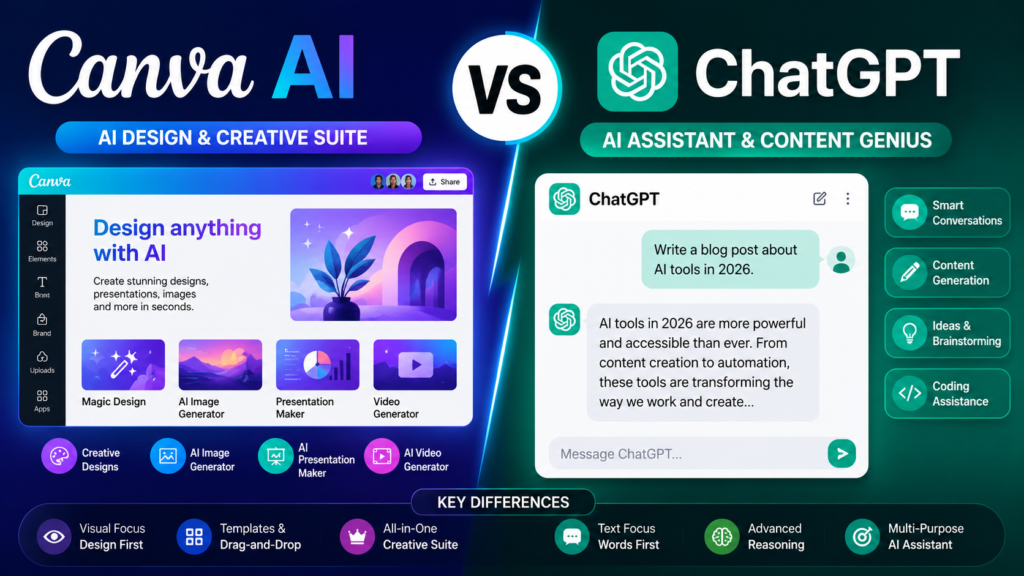
Canva AI generates visual designs; ChatGPT generates text and code. They serve different purposes but can complement each other.
| Factor | Canva AI | ChatGPT |
|---|---|---|
| Primary Output | Visual designs, presentations, videos | Text, code, analysis |
| AI Models | Multiple (Phoenix, Veo 3, proprietary) | GPT-4, GPT-4o |
| Image Generation | Yes (Dream Lab) | Yes (DALL-E) |
| Video Generation | Yes (Veo 3) | No |
| Design Integration | Full Canva editor integration | None |
| Pricing | Free, $144/year | Free, $20/month (Plus) |
Verdict: Use Canva AI for visual content creation. Use ChatGPT for research, writing, and analysis. The best workflow is often both – generate your copy in ChatGPT and design visuals in Canva AI. (For more on AI assistants, check out our guide on Perplexity AI and Microsoft Copilot.)
Canva AI vs Gamma
Canva AI offers more design flexibility and a wider feature set; Gamma is more focused on AI-powered presentations.
| Factor | Canva AI | Gamma |
|---|---|---|
| Best for | All-in-one design, multiple content types | AI-first presentations, pitch decks |
| Presentation Quality | Good, template-based | Excellent, AI-native |
| Design Features | Extensive (100M+ assets) | Limited to presentations |
| Video Generation | Yes (Veo 3) | No |
| Pricing | Free, $144/year | Free, $10-20/month |
| Ease of Use | Very easy | Very easy |
Verdict: Choose Gamma if you need AI-native presentations with minimal design effort. Choose Canva AI if you need a broader design platform with presentation capabilities.
Canva AI vs Beautiful.ai
Beautiful.ai offers smarter, more automated presentation design; Canva AI offers broader design capabilities.
| Factor | Canva AI | Beautiful.ai |
|---|---|---|
| Best for | All-in-one design platform | AI-powered presentations |
| Presentation Quality | Good, template-based | Excellent, adaptive layouts |
| Design Features | Extensive (100M+ assets) | Presentation-focused |
| Learning Curve | Easy | Very easy |
| Pricing | Free, $144/year | Free, $20-40/month |
| Collaboration | Excellent | Good |
Verdict: Choose Beautiful.ai for presentations that adapt intelligently as you add content. Choose Canva AI for a broader design platform with presentation capabilities.
Latest Canva AI News & Updates (2026)
Canva AI has seen major updates in 2026, including the launch of Canva AI 2.0 and the AI Pass add-on.
Here are the key developments:
What this means for you: Canva is investing heavily in AI. If you’re already in the Canva ecosystem, you’ll get access to increasingly powerful AI features. The AI Pass suggests that Canva sees AI as a significant revenue opportunity – expect more AI features (and possibly higher prices) in the future.
Security & Privacy
Canva AI’s security and privacy practices are a mixed bag – adequate for most users but with important caveats.
What Canva says: Canva uses industry-standard encryption and security practices. AI-generated content is processed on Canva’s servers.
What you should know:
- Data Usage: Canva may use your content to improve its AI models unless you opt out.
- Commercial Rights: Free-tier AI images have no commercial rights. You need a paid plan for client or product work.
- Content Ownership: You retain ownership of your designs, but Canva has a license to use your content for platform improvement.
- Third-Party Models: Canva uses third-party models (Leonardo.AI, Google Veo 3) – your prompts may be processed by these providers.
Recommendation: For sensitive client work, review Canva’s terms of service carefully. Consider using Adobe Firefly if commercial licensing certainty is critical. (Learn more about AI security concerns in our detailed analysis.)
Performance Review
Canva AI’s performance is generally fast and reliable, with occasional latency during peak usage.
Speed:
- Magic Design: 5-15 seconds for layout generation
- Dream Lab: 10-30 seconds for image generation
- Video Generation: 30-60 seconds for short clips
Quality:
- Images: Good for stylized graphics, inconsistent for photorealism
- Presentations: Polished and professional-looking
- Videos: Capable for short clips, not cinematic quality
Reliability:
- Generally stable, but occasional errors during high-demand periods
- Failed generations count against your credit allowance
Practical insight: During two weeks of client work, I generated over 200 social media assets using Canva AI. The speed was consistently fast, but I encountered occasional quality issues with Dream Lab – particularly with faces and text rendering.
Limitations: Where Canva AI Falls Short
Canva AI is powerful, but it has real limitations that the marketing materials don’t emphasize.
1. The Credit System Is Frustrating
All AI features share a single monthly allowance. Failed generations count against your limit. And the ranges Canva publishes assume you use only one tier at minimum complexity. In practice, mixing tiers and using complex prompts means your real monthly capacity is lower.
This is the main reason the credit system feels frustrating even to people who like the tools.
2. Image Quality Is Inconsistent
Dream Lab images sometimes have strange artifacts – hands with too many fingers, text that doesn’t render properly, or composition issues. For photorealism, Canva lags behind Midjourney and Flux.
3. It’s Not a Photoshop Replacement
If you need precise pixel-level control, advanced filters, or complex photo editing, Canva isn’t your tool. It’s designed for quick, presentable designs – not print-quality masterpieces.
4. No Reasoning Capabilities
Canva’s AI models are generation tools, not reasoning models. They can’t hold a messy brief and help you make sense of it, or weigh tradeoffs, or push back on a direction. For complex projects, you’ll still need human judgment – or a separate AI tool like ChatGPT.
5. Generic Output Risk
If you don’t customize, your designs might look similar to others using the tool. Canva’s templates are widely used, and the AI tends to produce on-brand, polished – but sometimes generic – results.
6. Bias and Content Issues
Canva has faced criticism over AI bias. In one incident, the AI swapped “Palestine” with “Ukraine” in smart templates, leading to accusations of political bias. The company blamed training data and took corrective action, but it highlights the risks of relying on AI for content generation.
7. Rendering Speed for Complex Designs
Complex designs with multiple AI-generated elements can take longer to render. If you’re working on tight deadlines, this can be frustrating.
8. Export Quality
While Canva exports designs in high resolution, AI-generated elements may lose quality when exported at very high resolutions. For print work, test exports carefully.
Who Should Use Canva AI (And Who Shouldn’t)
Use Canva AI if:
- You’re a non-designer who needs professional-looking visuals quickly
- You’re a small business owner, content creator, or marketer
- You need to produce high volumes of social media content
- You value speed and ease of use over absolute creative control
- You’re already in the Canva ecosystem and want AI to accelerate your workflow
- You’re a student or teacher creating presentations and educational materials
- You’re a YouTuber creating thumbnails and short-form content
Avoid Canva AI if:
- You need photorealistic AI images (Midjourney or Flux are better)
- You require pixel-level design control (use Adobe Creative Cloud)
- You produce high volumes of AI images – the credit limits will frustrate you
- You need commercial licensing certainty (Adobe Firefly’s free tier offers clearer terms)
- You’re a professional designer working on complex, bespoke projects
- You need cinematic-quality video (use Runway or Synthesia)
Future Outlook
Canva AI is evolving rapidly, and 2026 is a pivotal year for the platform.
What’s new in 2026:
- Canva AI 2.0: Agentic architecture with conversational design, Memory Library, and Web Research
- Object-Based Intelligence: Granular edits without disrupting entire designs
- Multi-channel campaign design: Generate assets across formats from a single prompt
- Memory and web research: System learns preferences and can research topics
- Task scheduling: Automated design workflows
- AI Pass: $100/month add-on for heavy AI users
What to expect:
- Improved image quality: Canva is investing heavily in AI, and Dream Lab will likely improve
- Better video capabilities: Veo 3 is already impressive; future versions will be more capable
- Deeper integrations: Canva is positioning itself as the central hub for workplace creativity
- More agentic features: Expect Canva AI to handle increasingly complex tasks autonomously
Expert opinion: Canva’s shift from “a design platform with AI tools to an AI platform with design tools” is the right strategic move. The company is positioning itself to compete not just with design tools, but with AI platforms like ChatGPT and Microsoft Copilot. Whether they succeed depends on execution – particularly around image quality and credit limits.
FAQs
1. Is Canva AI free?
A: Yes, Canva AI is free to start. The free plan includes basic AI tools with a monthly usage limit: up to 200 Standard AI uses or 20 Premium AI uses monthly. You can test Magic Write, image generation, and design tools without paying. Once you hit the cap, you’ll need to upgrade to Pro or Business. Free-tier AI images carry no commercial rights.
2. What is Canva AI Magic Design?
A: Magic Design is Canva’s AI tool that generates complete, editable layouts from a text prompt or image upload. You describe what you need, and Magic Design produces multiple layout options with typography, color schemes, and structure. It combines OpenAI’s generative AI with Canva’s design library of 100+ million assets.
3. How much does Canva AI cost?
A: Canva Pro costs $144/year (~$12/month) or $18/month and includes up to 2,000 Standard AI uses, 200 Premium AI uses, and 20 Ultra AI uses monthly. Canva Business costs $250/year per person or $25/month and includes up to 4,000 Standard, 400 Premium, and 40 Ultra AI uses. An AI Pass add-on costs $100/month for heavy users.
4. Can Canva AI generate images?
A: Yes, through Dream Lab – Canva’s text-to-image generator powered by Leonardo.AI’s Phoenix model. It produces stylized images for social media, marketing, and presentations, but lags behind Midjourney and Flux on photorealism, faces, and in-image text.
5. Can Canva AI make videos?
A: Yes, Canva AI Video generates video clips from text prompts, powered by Google’s Veo 3 model. It produces videos with sound from simple text prompts, with clips up to 8 seconds in length. It also offers AI-powered background removal, automatic subtitles, and over 1 million templates.
6. Is Canva AI better than Adobe Firefly?
A: It depends. Canva AI is better for speed, ease of use, and all-in-one content creation. Adobe Firefly is better for professional-grade image quality and commercial licensing certainty. Adobe’s Firefly is trained on licensed content, making it safer for commercial use.
7. Can I use Canva AI images commercially?
A: Free-tier AI images carry no commercial rights. You need a paid plan (Pro or Business) to use AI-generated images in client or product work. Adobe Firefly offers clearer commercial terms, including full indemnification for Firefly-generated content.
Final Verdict
Canva AI 2.0 is a legitimate leap forward for non-designers and content creators – but the credit system and image quality limitations mean it’s not for everyone.
Here’s my honest take after 30 days of testing:
The good: Magic Design is genuinely magical. The conversational interface works. The integration with Canva’s ecosystem means you can go from idea to published asset faster than any other tool I’ve tested. For social media, presentations, and marketing content, it’s a massive productivity boost.
The bad: The credit system is confusing and frustrating. Failed generations count against your limit. Image quality lags behind dedicated AI generators. And the AI lacks reasoning capabilities – it’s a generation tool, not a thinking partner.
The verdict: If you’re a non-designer, small business owner, or content creator who needs to produce visuals quickly, Canva AI is worth every penny. If you’re a professional designer or need photorealistic images, look elsewhere.
My recommendation: Start with the free tier. Test the features. See if the credit limits work for your workflow. If you hit the limits and need more, upgrade to Pro. But don’t upgrade blindly – understand how the credit system works first, or you’ll be frustrated.
Key Takeaways
- Canva AI 2.0 transforms Canva from a design tool into an AI platform
- Magic Design generates complete, editable layouts in seconds
- Dream Lab produces solid stylized images but lags behind Midjourney on photorealism
- Video Generation uses Google’s Veo 3 for short, sound-enabled clips up to 8 seconds
- All AI features share a single monthly credit allowance – failed generations count
- Free-tier AI images have no commercial rights – you need a paid plan for client work
- AI Pass ($100/month) offers 40x more AI for Pro users and 20x more for Business users
- Choose Canva AI for speed and ease of use; choose Adobe Firefly for quality and licensing certainty
- Canva AI is not a Photoshop replacement – it’s designed for quick, accessible design
Ready to explore more AI tools? Check out our guides on latest AI tools, 10 free AI tools for 2026, and how to use AI in daily life. For enterprise AI solutions, see our deep dives on Microsoft Copilot, GitHub Copilot, and Amazon Q. To understand how tech giants are shaping the AI landscape, read our analysis on tech giants envisioning the future beyond smartphones and our complete guide to xAI.
Leave a Reply