
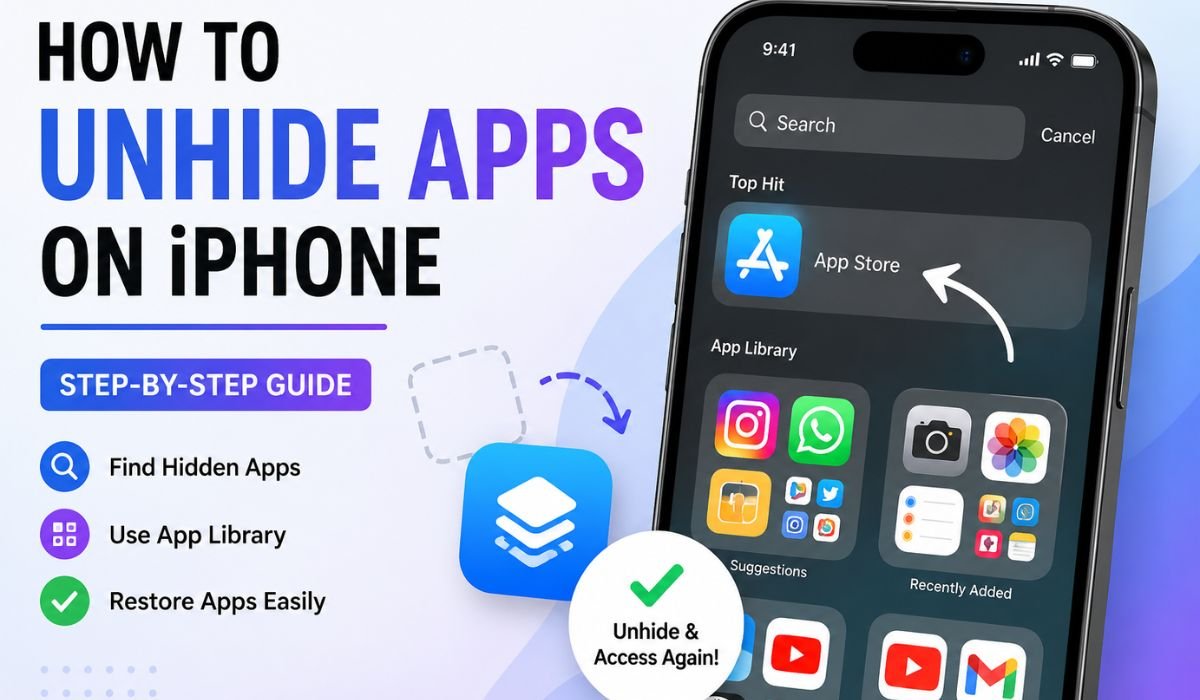
How to Unhide Apps on iPhone: Many iPhone users want to hide apps by mistake or store them in a closet and find them later. There are occasions when an app you had previously installed has vanished from your Home Screen as a result of a settings adjustment, software upgrade, or even mistakenly deleting it. But that makes users think the application has been deleted.
The positive aspect is that most of the time you can find and recover hidden applications within minutes. So in this tip, we will explain how to unhide apps on iPhone using a simple and easy method that anyone can understand.
It covers everything, whether the app was hidden from the Home Screen, placed in App Library, limited through settings on your iPhone or concealed while purchasing.
Why Apps Become Hidden on iPhone
Applications can become hidden for several reasons:
- Apps were removed from the Home Screen accidentally
- Screen Time restrictions hid the app
- The app was placed inside folders
- App purchases were hidden
- App Library settings moved apps automatically
- Software updates changed Home Screen arrangement
- The app was deleted unintentionally
Before trying complex methods, it is important to identify the actual reason.
How to Unhide Apps on iPhone Through Search
The easiest method is using the iPhone search feature.
Follow these steps:
- Unlock your iPhone
- Swipe down on the Home Screen
- Tap the search bar
- Type the app name
- If the app appears, press and hold it
- Tap Add to Home Screen
This method quickly finds apps even if they are hidden deep inside folders.
Example
If Instagram disappeared:
- Open search
- Type “Instagram”
- Hold the app icon
- Select Add to Home Screen
How to Unhide Apps on iPhone From App Library
Starting with newer iOS versions, applications may disappear from the Home Screen but remain inside the App Library.
Use these steps:
- Swipe left on your Home Screen repeatedly
- Reach App Library
- Search for the hidden application
- Press and hold the app icon
- Tap Add to Home Screen
This is one of the most common solutions.
Quick Methods to Unhide Apps
| Method | Difficulty | Time Required |
|---|---|---|
| Search Bar | Easy | 10 seconds |
| App Library | Easy | 20 seconds |
| Screen Time Settings | Medium | 1 minute |
| Purchased Apps | Medium | 2 minutes |
| Reset Home Screen | Medium | 2–3 minutes |
How to Unhide Apps on iPhone Using Screen Time Settings
Screen Time can hide applications by restricting access.
Follow these instructions:
Step 1:
Open Settings
Step 2:
Tap Screen Time
Step 3:
Select Content & Privacy Restrictions
Step 4:
Choose Allowed Apps
Step 5:
Turn on the hidden application
After enabling it, the application should appear again.
How to Unhide Purchased Apps on iPhone
Some users hide applications from purchase history.
To restore them:
- Open App Store
- Tap your profile picture
- Select Apps
- Choose Hidden Purchases
- Find the app
- Tap Unhide
The application becomes visible again.
How to Restore Removed Home Screen Pages
Sometimes entire Home Screen pages become hidden.
To restore pages:
- Press and hold an empty Home Screen area
- Tap the page dots at the bottom
- Hidden pages will appear unchecked
- Enable the pages again
- Tap Done
Your missing apps may immediately return.
How to Find Hidden Apps Inside Folders
People often place applications inside folders and later forget where they stored them.
To check folders:
- Open each folder
- Swipe through additional folder pages
- Search carefully
Applications may simply be buried inside categories.
Examples:
- Social folder
- Games folder
- Utilities folder
- Productivity folder
How to Unhide Apps on iPhone by Resetting Home Screen Layout
If you still cannot locate applications, reset your Home Screen arrangement.
Steps:
- Open Settings
- Tap General
- Select Transfer or Reset iPhone
- Tap Reset
- Choose Reset Home Screen Layout
This restores original app placement.
Important: It only changes layout arrangement and does not delete your personal data.
How to Reinstall Missing Applications
If the app was deleted completely, reinstalling it may be necessary.
Follow these steps:
- Open App Store
- Search for the app name
- Tap the download icon
- Wait for installation
Once installed, the app should appear on the Home Screen.
Common Reasons Users Cannot Find Their Apps
| Problem | Solution |
|---|---|
| Hidden Home Screen page | Enable page again |
| Screen Time restriction | Allow app access |
| App moved to App Library | Add back to Home Screen |
| App deleted accidentally | Reinstall app |
| Hidden purchase history | Unhide purchase |
Tips to Avoid Losing Apps Again
Keeping applications organized helps prevent future problems.
Useful tips:
Create clear folders
Group similar apps together:
- Social media
- Work apps
- Entertainment
- Utilities
Use App Library properly
Allow iPhone to organize apps automatically.
Avoid accidental restrictions
Check Screen Time settings regularly.
Keep software updated
New iOS updates improve Home Screen management.
Use search frequently
Search finds applications instantly.
Updates sometimes change Home Screen organization and app placement.
Conclusion
How to Unhide Apps on iPhone: Knowing how to unhide apps on iPhone can prevent time-consuming frustration. Missing apps are usually just hidden; they are not actually deleted, but rather hidden through settings, App Library organization, folders or restrictions.
Searching for it, checking App Library, playing with Screen Time settings and restoring eliminated Home Screen pages largely leads to a speedy correction of the predicament. If applications are also organized well and settings are checked from time to time, users will not lose their apps in the future.
FAQs
Q. Can hidden apps still receive notifications?
Yes. Hidden applications can continue receiving notifications if notifications are enabled.
Q. Does hiding an app delete its data?
No. Hiding an app only removes visibility. App data remains stored.
Q. Can I hide apps without deleting them?
Yes. You can remove apps from the Home Screen without uninstalling them.
Q. Can App Library hide applications automatically?
Yes. iPhone settings may send newly downloaded applications directly into App Library.
Leave a Reply